
TLDR: This post describes how I orchestrate and configure Claude agents to work on many git repos and sync progress with Linear without losing track of their work. It’s basically a mono-repo with markdown and a split panel terminal.
Introduction
This post describes how I use Claude Code for work and how it augments my work processes. I struggled managing the many coding agents I had running on my machine. I would lose track of their work, and it felt very inefficient. To solve this, I deliberately did not look for yet another tool to install. I’m sure there are many other ways to achieve what I’m currently doing. I wanted something simple and customizable. I hope this post can be beneficial if you’re struggling with (micro)managing your coding agents. It’s likely that my work processes are very different compared to your processes. So take what works and leave the rest.
I’m quite ambivalent when it comes to using generative AI. I do use it for work a lot these days, generating technical designs & plans and implementing features. It really helps me to do more work in less time. Privately, though, I don’t use it as much. I have ethical and privacy concerns about using it. So this post is entirely hand-written.
My development journey over the years
IDEs
I started my professional development career using IDEs, mainly Visual Studio. I really liked the visual representation of both code, project files, and the built-in source control management. Over time, I switched to using VSCode because I started to work with different languages, especially when I started to work with Dapr. I really like the flexibility of VSCode and I also started to use the built-in terminal more and rely less on the UI for source control and running applications. When I write my blog posts (in markdown), I still ❤️ VSCode.
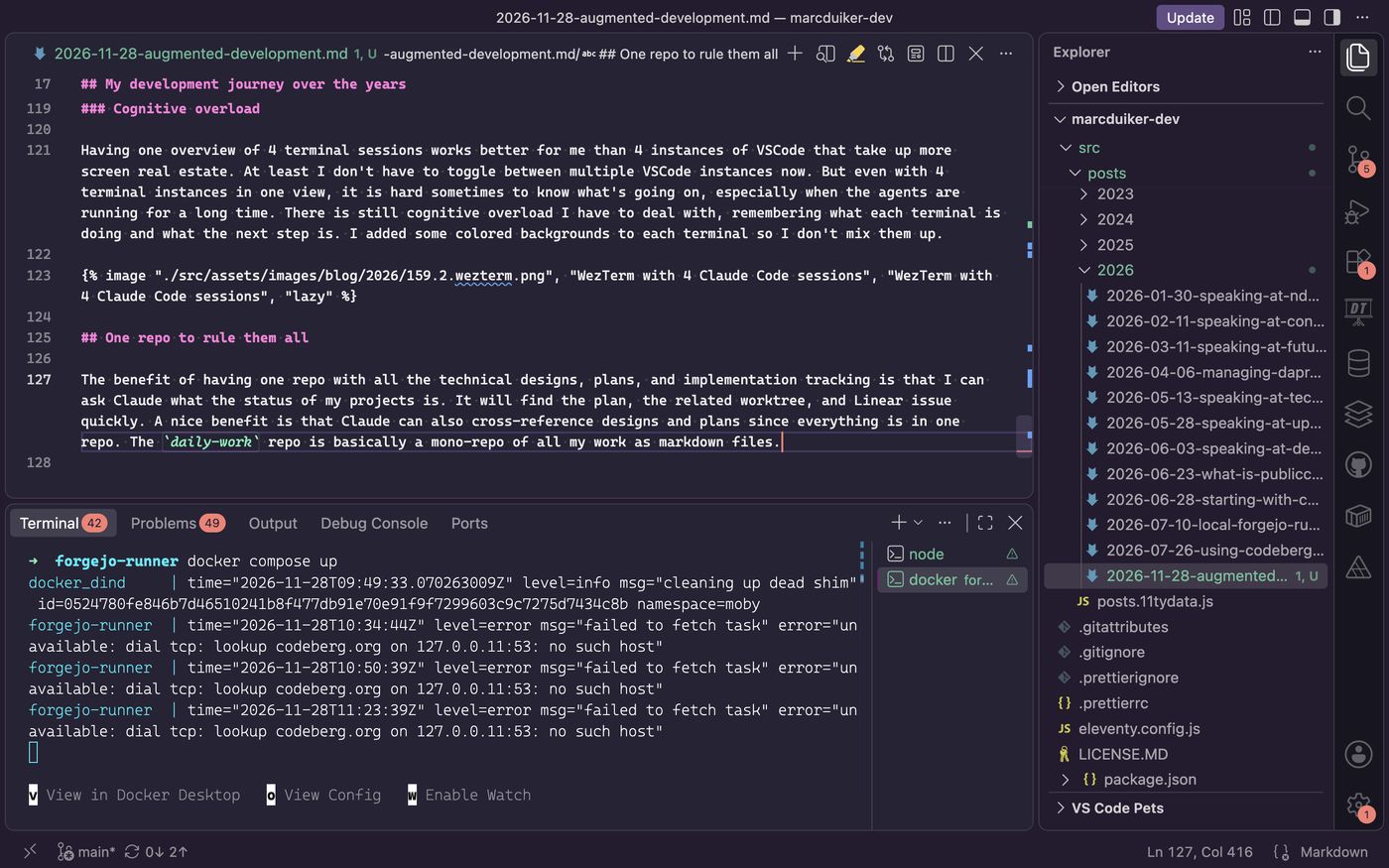
When AI-assisted coding started, I primarily used Copilot from the VSCode terminal. Soon I switched to Claude Code, also running from the VSCode terminal. I never cared much for the coding agent extensions.
Parallel development & context switching
In the first few weeks of AI-assisted coding, I would closely watch the coding agent do its thing and wait for it to complete. The tasks I gave it were small, so I didn’t have to wait for long. Then I discovered skills and plugins to help with structured software engineering using agents (I still use Superpowers a lot). This meant I could delegate more work to the agents: write specs, plans, execute the implementation, and review. Obviously, I would not wait idly until all this work was completed. I would start another instance of VSCode and run another Claude Code session there. I kept doing this until I had 4 or 5 VSCode windows open. At that moment I found that context switching and cognitive overload became an issue. I would forget the work that was started (and probably completed by now) in the first VSCode instance, so in the end this did not feel like an efficient way to do things.
Moving to the terminal completely
I realized I did not need to use VSCode as much as I did before. I was mainly using the VSCode terminal to run Claude Code. So I decided to switch completely to terminal-first development with coding agents and occasionally reviewing and testing in VSCode. Keeping track of all the agents was my major concern, so I came up with the following:
- A private Git repo (I call it
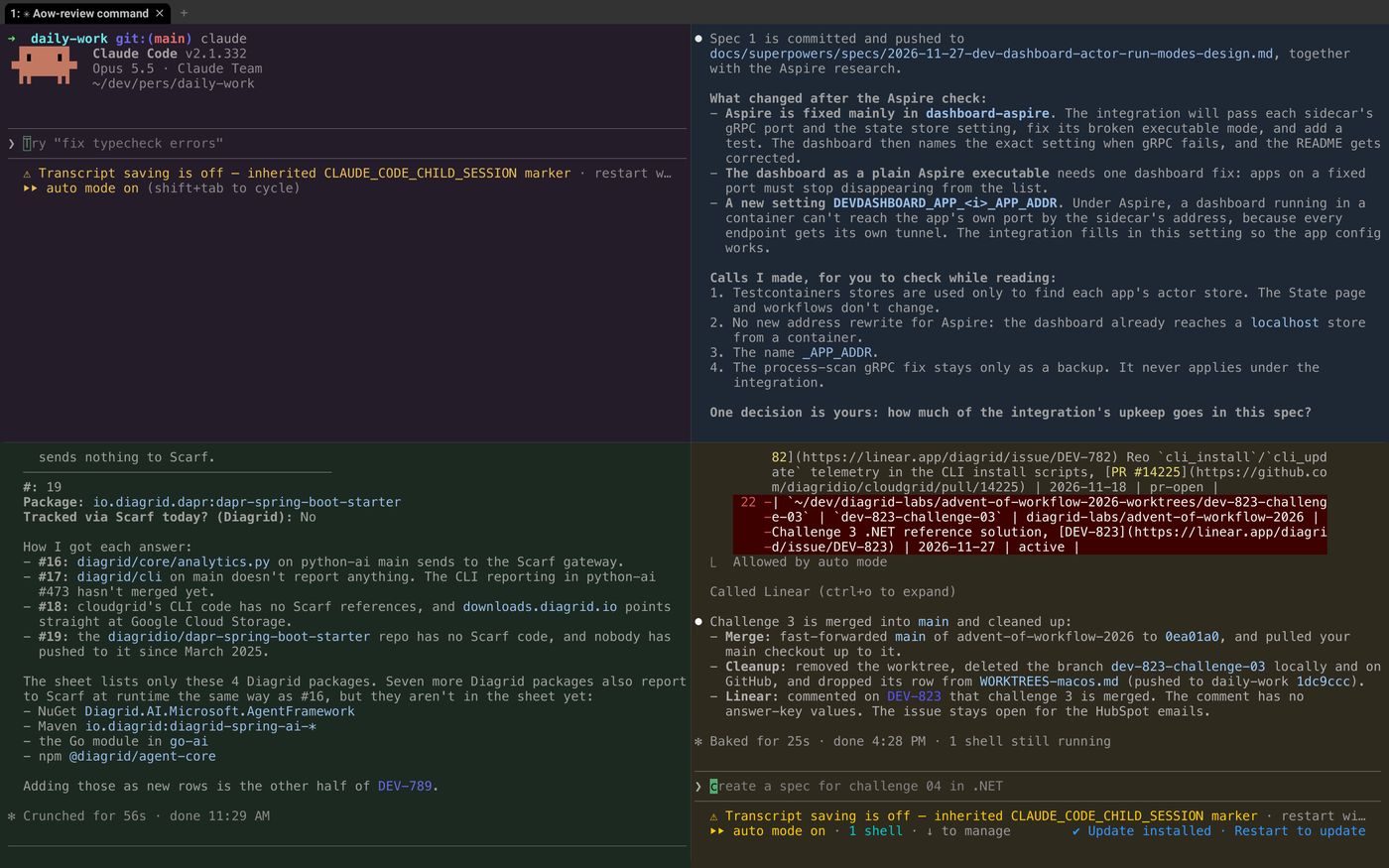
daily-work) with AGENTS.md instructions on how to deal with multiple repositories and connected services (Linear, Slack). - A split-panel terminal approach. I’m using WezTerm but any terminal will work. I’m using a 2x2 split view, so I see 4 terminals at once. I run Claude Code in each of the 4 terminals. And they are all opened in the cloned
daily-workrepo.
AGENTS.md
The AGENTS file in the daily-work repo contains instructions, rules, and references that are tailored for my work processes. This is a snippet from the actual AGENTS file I’m using:
# AGENTS.md

This is my orchestration repo. I run several Claude Code terminals at once, and
this repo is where the work for them starts and where it is tracked: daily
triage, specs, plans, briefs and the worktree registry. The code and docs being
changed live in other repos, listed below.

## Rules

1. **Never edit a repo's main checkout.** When code or docs in another repo need
   to change, create a git worktree for that work (see
   [Worktrees](#worktrees)). Another terminal may be using the main checkout or
   a different worktree.
2. **Register every worktree** in the registry for the machine you are on
   when you create it, and remove its row when you remove it. That way they
   can be cleaned up later. [`WORKTREES.md`](WORKTREES.md) says which file
   that is.
3. **Commit specs, plans, briefs and notes directly to `main` in this repo.**
   That covers `docs/superpowers/specs/`, `docs/superpowers/plans/`, `notes/`
   and any task briefs. Push them to `main` too. Don't use branches or PRs for
   them, and don't commit them in the target repo. Commit only the files you
   wrote; other terminals may have uncommitted files here too.
4. **Every implementation plan has a matching Linear project or issue in the
   DEV team.** See [Linear](#linear).
5. **Follow the target repo's own instructions.** Before working in a worktree
   of a cloned repo, read its `AGENTS.md` and `CLAUDE.md` files (at the root and
   in any subfolder you work in), and follow them in addition to this file.
6. **Work moves through four stages, in order: research, spec, plan,
   implementation.** Each stage builds on the one before it. A research task
   ends with its findings. Don't turn it into a plan or start implementing
   from it.

## Linear

Each implementation plan maps to a Linear project or issue in the **DEV** team
(https://linear.app/diagrid/team/DEV). Linear issues come from parts of a
plan.

- **A research task gets its own Linear issue,** usually directly under the DEV
  team with no project. A project is only created once there is a plan.
- **Before or while writing a plan,** search the DEV team for an existing
  project or issue that covers the work. If you find one, link it at the top of
  the plan.
- **If nothing matches,** suggest a new project or issue: give its title, a
  short description and, for a project, the issues it would contain. Create it
  only after I explicitly approve it. Don't create Linear projects or issues
  without that approval.
- **When running a plan,** keep the Linear issues up to date: set the status
  when work starts, link the branch and PR, add a comment when a task finishes
  or gets blocked, and mark issues done when their work is merged. Record which
  plan task maps to which issue in the plan, so other terminals can find it.

## Repos

Local clones live under three folders, one per GitHub org:

| Folder | GitHub org |
|---|---|
| `~/dev/dapr` | `dapr` (some are forks under `marcduiker`) |
| `~/dev/diagrid` | `diagridio` |
| `~/dev/diagrid-labs` | `diagrid-labs` |

Repos I use most:

... Huge list of repos here :D ...

... + some info on Slack channels and messages ...
Git Worktrees
Git worktrees are amazing! They allow parallel independent development on the same Git repository on your local machine. I never had the need to use this Git feature before, but with multiple AI coding agents running locally, this makes development much cleaner. One of the downsides is that you can end up with many git worktrees across your repositories if they are not cleaned up. That is why I made it explicit in my AGENTS.md to capture all worktrees in a separate WORKTREES.md file in the daily-work repo. So I’m keeping an index of the work that is going on, and as soon as the work is completed, the worktree will be removed.
This is a short snippet of the WORKTREES file on my MacBook. I also have a Windows machine, and each has a seperate WORKTREES file.
The worktree registry for the Mac. Paths are rooted at ~/dev. SeeWORKTREES.md for the conventions and
AGENTS.md for how to create and clean up a worktree.
| Path | Branch | Repo | Purpose | Created | Status |
|---|---|---|---|---|---|
~/dev/diagrid-labs/dashboard-aspire-worktrees/check | detached at origin/main | diagrid-labs/dashboard-aspire | Research: check the Aspire hosting integration for the actor spec, DEV-936. Holds the uncommitted _DAPR_GRPC prototype in Hosting.Dashboard/DaprSidecarDiscovery.cs | 2026-11-27 | in-progress |
I never update the WORKTREE files by hand. The coding agents take care of it.
Project management
At Diagrid we heavily use Linear for project and product management, and I’m quite a fan. The integration with GitHub works well; it’s very customizable, and I do like the interface. One thing I do not like very much, regardless of the project management system, is updating issues and projects by hand. This is tedious admin work, and every system can run out of sync quickly if items do not get updated. That’s why I added the Linear section in the AGENTS file to ensure there’s always a project or issue for the work that I do (visibility is important). As soon as a coding agent moves to a different execution stage, the related issue is updated through the Linear MCP server. During my day-to-day work I frequently ask (through Claude Code) what the next Linear issues are that I should work on.
Cognitive overload
Having one overview with 4 terminal sessions works better for me than 4 instances of VSCode that take up more screen real estate. At least I don’t have to toggle between multiple VSCode windows now. But even with 4 terminal instances in one view, it is hard sometimes to know what’s going on, especially when the agents are running for a long time. There is still some cognitive strain I have to deal with, remembering what each terminal is doing and what the next step is. I added some colored backgrounds to each terminal so I don’t mix them up.
One repo to rule them all
The benefit of having one repo with all the research, technical designs, plans, and implementation tracking is that I can ask in any terminal what the status of my projects is. It will find the plan, the related worktree, and pull requests, and Linear issues quickly. A additional benefit is that Claude can also cross-reference designs and plans since everything is in one repo. The daily-work repo is basically a mono-repo of all my work as markdown files.
Hope this helps!